No-Code Magic: Creating an LLM-Powered Chatbot in Just 5 Minutes
No-Code LLM App with FlowiseAI
The demand for quickly integrating large language models like GPT into company data is growing. This enables companies to create strong conversational AI chatbots that interact naturally with data. This article explores FlowiseAI, a visual UI Builder, demonstrating how it helps developers prototype LLM chatbots in just 5 minutes. I’ll guide you through setting up FlowiseAI, integrating GPT, and creating a responsive AI chatbot for your inquiries.
Getting Started with FlowiseAI
FlowiseAI functions as an accessible, open-source visual UI Builder, streamlining the creation of apps that utilize large language models. This development process involves establishing a solid foundation through a series of essential steps:
- Docker Installation: To facilitate the FlowiseAI process, I began by installing Docker, which served as the runtime environment.
- FlowiseAI Repository Cloning: I replicated the FlowiseAI repository from GitHub onto my local system.
- OpenAI API Key: Ensuring I had an OpenAI API key was pivotal; though acquiring it was straightforward and free, it might necessitate credit card verification.
- SerpAPI Key: I secured a SerpAPI key, also free of charge, which was crucial for web scraping purposes, specifically from search engines like Google.
Building the Conversational AI Chatbot
The objective was to devise an AI chatbot leveraging ChatGPT’s capabilities to address inquiries while seamlessly sourcing additional information from the web. To exemplify this, I embarked on creating a straightforward chatbot equipped to provide prompt responses to diverse queries. Leveraging SerpAPI, the chatbot could gather data from search engines such as Google.
Step 1: Cloning the Repository and Setting Up Environment
I initiated by accessing my terminal and navigating to my project directory. Within that space, I cloned the FlowiseAI repository. For those with npm installed, the quick start guide sufficed. Alternatively, Docker emerged as a flexible alternative for those without npm.
git clone https://github.com/FlowiseAI/Flowise.gitcd flowise/docker#rename env file and change the port number if requiredmv .env.example .envStep 2: Launching the application
The application launch involved Docker Compose, followed by accessing the localhost URL via a web browser.
docker-compose up -d#localhost:port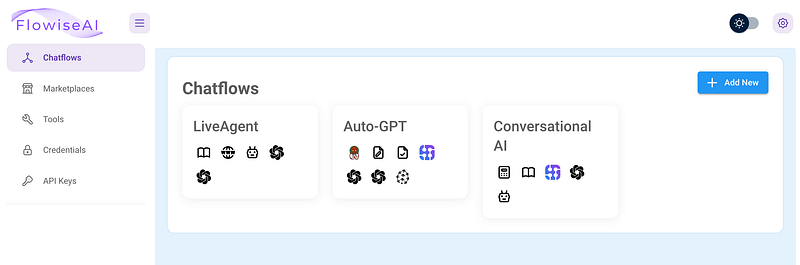
Step 3: Developing the Chatbot
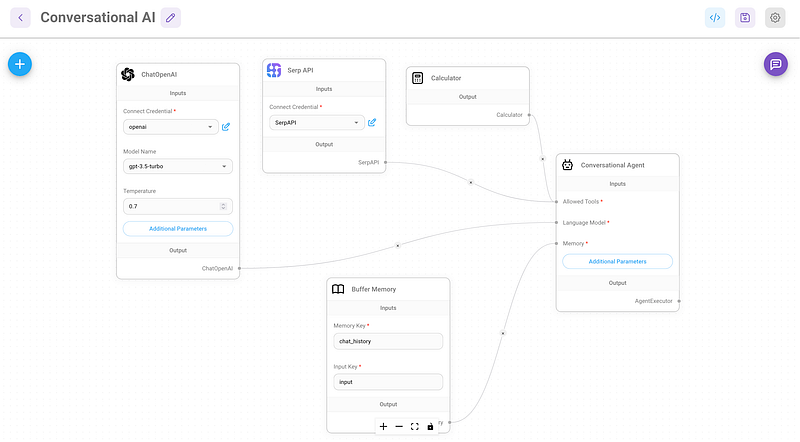
Within the “Marketplaces” section, I opted for the “Conversational Agent” template and diligently preserved the template. Subsequently, I incorporated my API keys, establishing a connection between OpenAI and SerpAPI components. This interplay enabled the chatbot to retrieve answers based on the input provided.
Step 4: Save and Test
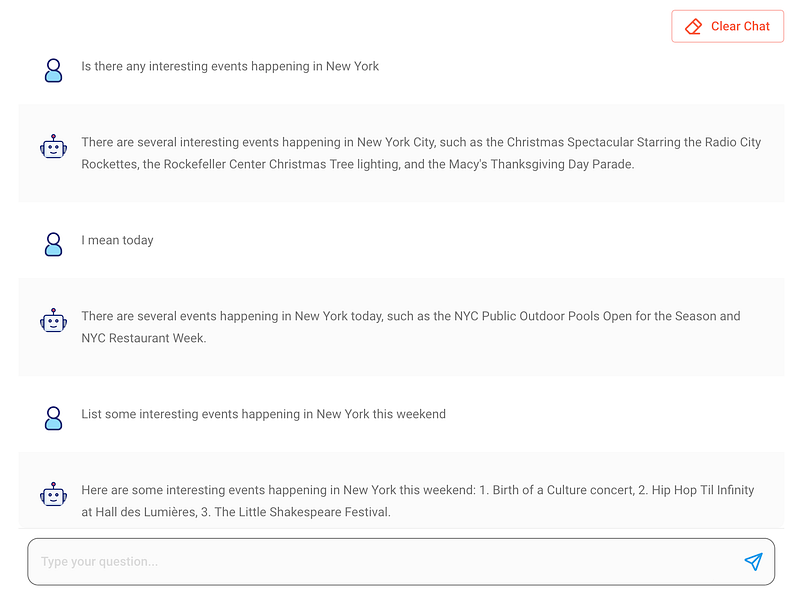
The conclusive phase encompassed configuring and validating the chatbot’s functionality. I subjected it to a series of queries, including inquiries about the current weather and upcoming weekend events in NYC. Impressively, the chatbot delivered remarkably accurate responses, signifying the successful culmination of the setup.
Conclusion
FlowiseAI emerged as a potent ally in integrating formidable language models like GPT with company data. The amalgamation of its visual UI Builder and Lang chain support facilitated rapid prototyping of conversational AI chatbots. Beyond its immediate prototyping utility, FlowiseAI holds promise for broader AI experimentation. As the platform’s evolution progresses and documentation augments, it stands poised to emerge as a pivotal resource for both developers and businesses. I encourage exploration of other marketplace templates, such as the “Conversational Retrieval QA Chain,” enabling the creation of data-driven chatbots. Should assistance be required in configuring Pinecone, I am readily available to extend support.